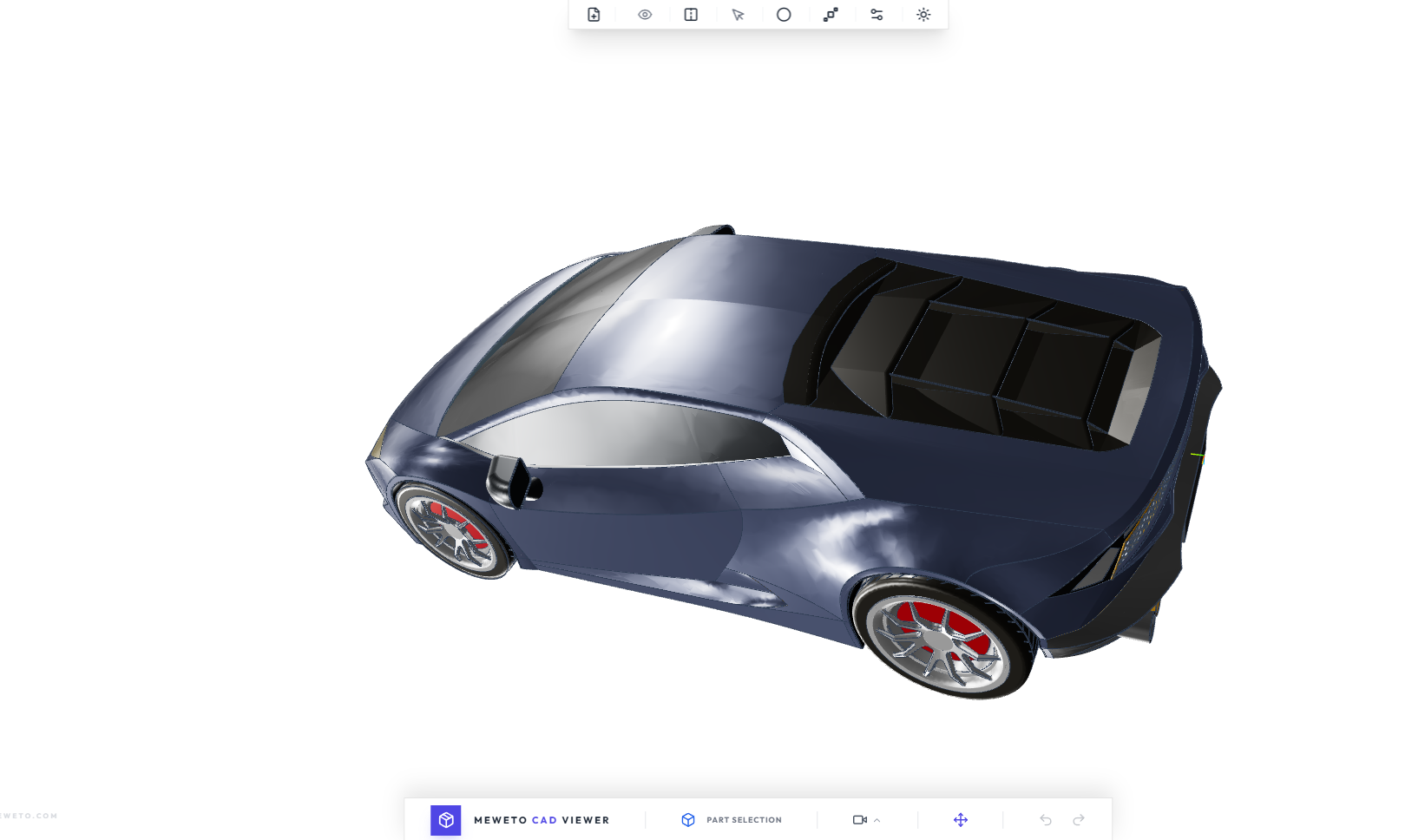
Imagine you have a design in mind; you hire a CAD designer to study and design your idea. Then you want to see what it really looks like. In this stage, you need a render of your product to look like a real product by applying a photorealistic material. That transition from concept to a physical product, 3D CAD rendering, is the bridge where you can make a decision on your final product, changing and deciding the material you want to use for it.
There are some 3D CAD rendering applications that have already existed as standalone, such as Keyshot by Luxion, Maverick Studio, SimLab Composer, Altair Studio, …etc. Those Applications are very good at rendering, using your local hardware, like the GPU and CPU, to create an awesome render. They have a lot of advanced features in order for you to achieve the best result possible. But you need to install it, and most of them are not free.
When you are on a business trip, unable to bring your workstation with your preferred Render studio, 3D CAD Render by Meweto can save you in that case. You can import your CAD file (STEP and IGES), view it, explore and manipulate with the web application. The application is still a work in Progress (WIP). You can already taste it and even render your model. The result input is far lower than the professional render, but usable. Please let me know your thoughts about it.
Let us make a quick tour of the basics of 3D CAD rendering by MeWeTo
When you first click the link https://3dcadrender.meweto.com , you can see a pop-up, in order for you to import your CAD model.
Basically, the application is divided into 4 main parts, which are
- Sidebar: In the sidebar, you will see a history bar very similar to a professional CAD Application, and the rendering modal for rendering options of the resolution and render quality of your final output.
- Top menu: The top menu is the main tool menu where you see the new file (import CAD file or add CAD file in a canvas), view type option (shaded, shaded with line, transparent), Section view (switch on/off), entities selection, Material, Exploded view, and Studio setup.
- Bottom menu: Additional information about the model, Camera/views, navigation tools
- Main canvas
These are mainly the applications. Next, let’s go deeper into the main features individually.
Material
When you create a render, you need to add some color to your 3D model. That’s why you need to set a material for each part of your model. In a 3D CAD render by Meweto, it’s easy to add a material: Click on the Material button, and a material pop-up appears. After that, you choose the material you want from the PBR list and your set. Easy.
PBR libraries support drag-and-drop functionality. Furthermore, you can explore a custom material if you want with the Material Node Editor. Material Node Editor is still unstable. Try it. We would love to hear your thoughts and feedback on this feature, usability, and improvements.
That’s all about the material. You can explore the application further.
Exploded View
The reason we are considering an exploded view feature in the application is that users might need to view all details and components of their CAD. So you can manipulate your model, explode/collapse it. There are still a lot of features we need to include in the exploded view feature, but you can already taste that powerful feature
Section View
Section View is one of the most powerful features in CAD. And it’s better to have it in rendering so that the users can present and show what is inside a CAD model if they have a multipart design or multi-body model. This feature is crucial for CAD users, even for those who want you to convince. The section view is part of the details view.
Render Setting
Before you hit the Render button, you need to set up something allowing you to control your output and the desired render quality. The render settings for 3D CAD rendering in MeWeTo are user-friendly, and everything is already set by default. Once you adjust your model to be rendered, you can already click on Render and get your file
All in all, a 3D CAD render web application should be a great tool for engineers and passionate 3D designers. You can browse your 3D CAD model with the application and even customize it, apply some realistic material, look into some internal details, and even animate an exploded view of an assembly. You can even create an advanced premium material by using the material node editor, using your talent and creativity within the application.
This application is still a work in Progress. More features will come soon, such as generating 2D technical drawings and Mechanical Animation.
If you need to contribute or get in touch with the creator of the application, you are very welcome to contact us.
We will post a basic tutorial blog next time.