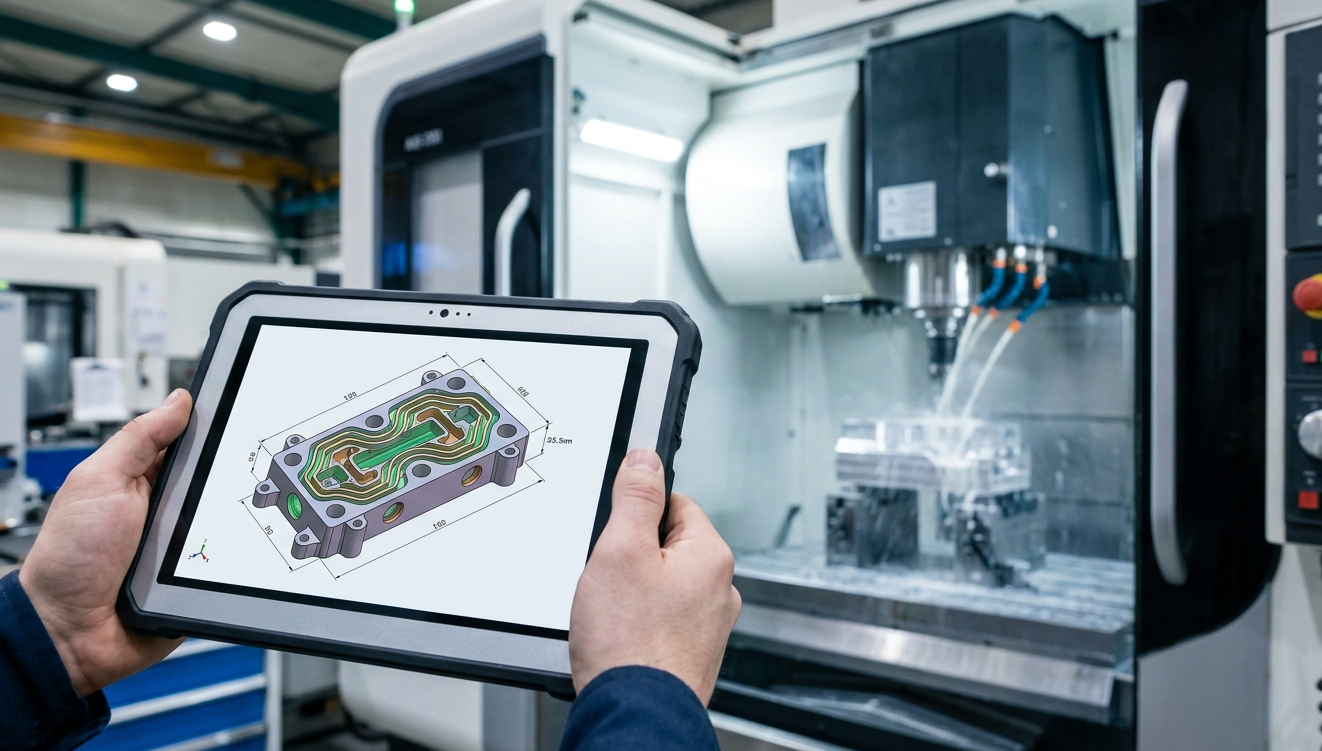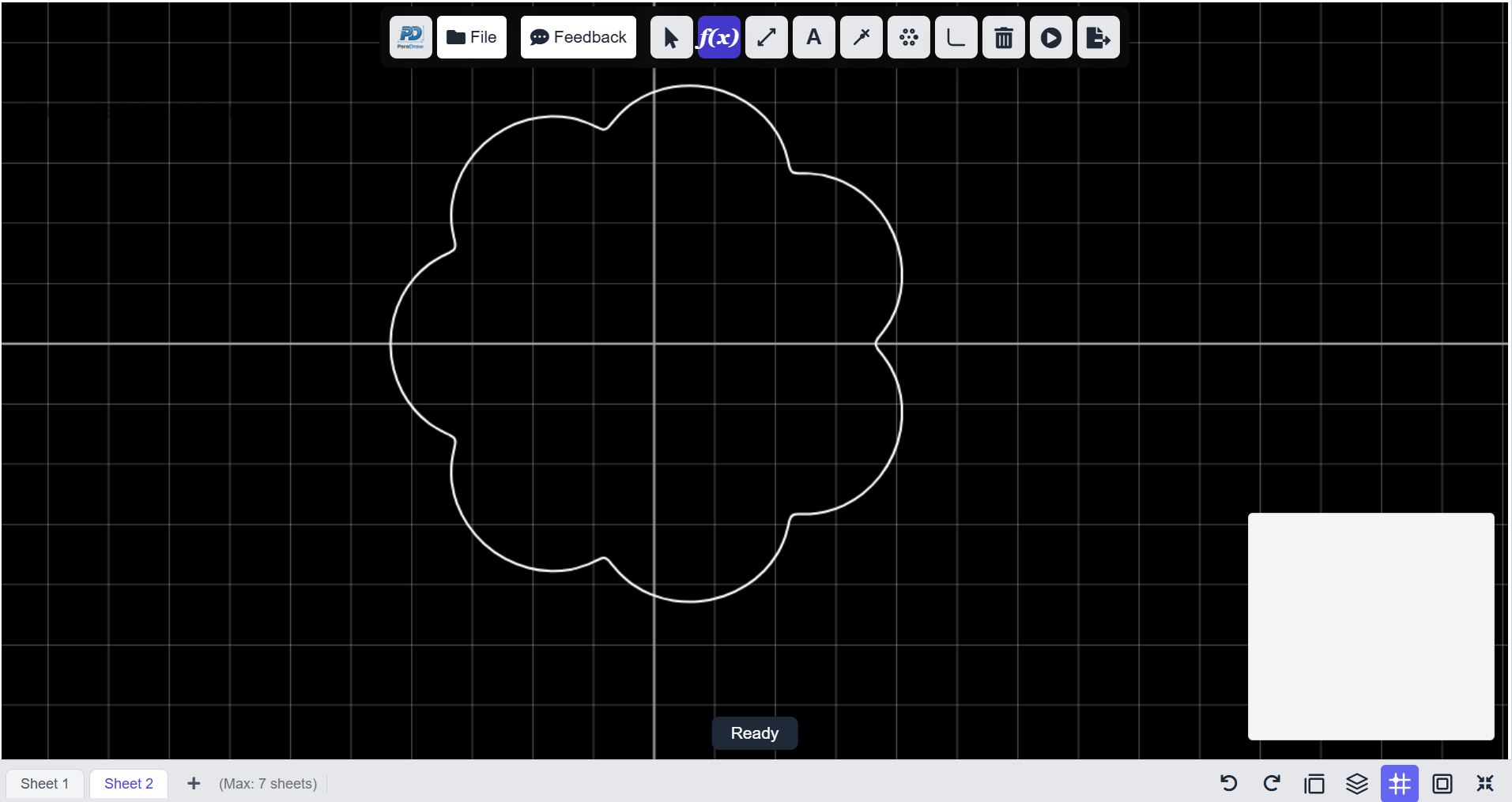
Over the past 10 months, we have developed a versatile tool. In the early stages of research and development, Mechanical Design Engineers often do not require elaborate designs; a simple hand drawing is usually sufficient to clarify design concepts.
With today’s advanced technology and AI, simple sketches can be transformed into precise, easy-to-understand designs with accurate dimensions. ParaDraw by Meweto enables engineers to create 2D designs similar to traditional CAD drawings, allowing for exact measurements and clear visualization of proportions based on original sketches.
Please note that ParaDraw is still in its beta version. It’s not fully finished yet, as I’m using this stage to gather feedback and data to help improve the application.
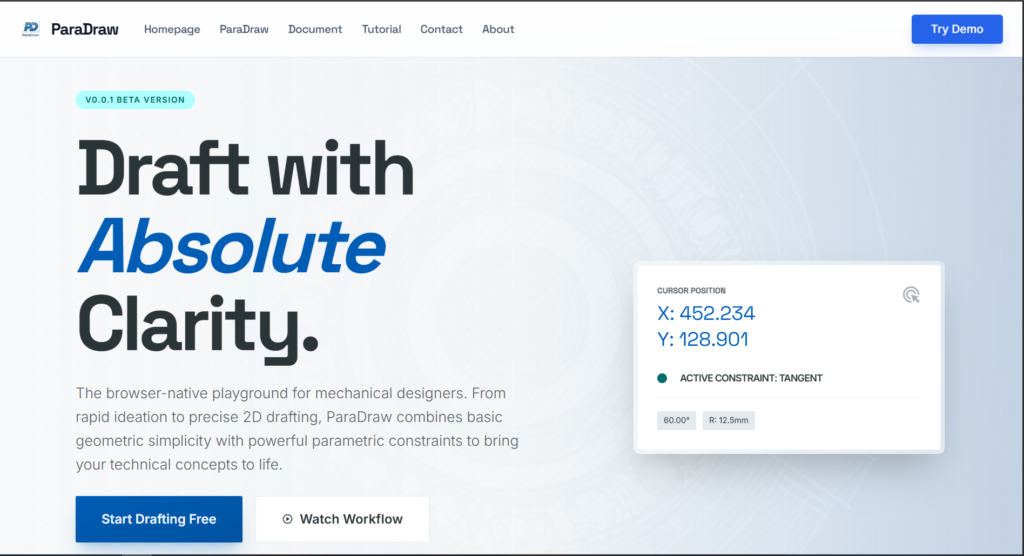
You can have access to Paradraw by visiting the Paradraw website. When you first launch ParaDraw, you’ll see a homepage that provides a quick introduction to the application.
Before you begin to create your first sketch, you can check the user manual in the document menu. In this menu, you can see which features are fully functional and which ones are still very buggy. You can learn from the document about navigation and mouse gestures. This is the most crucial in CAD design and navigation. From the Documents menu, you can also see how the advanced features we implemented in the application are.
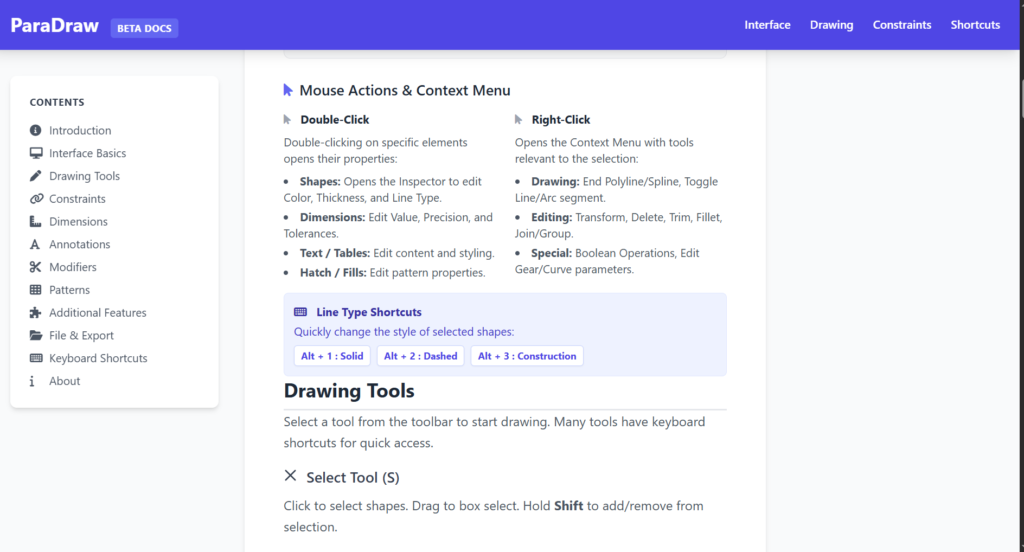
One notable feature of the application is the use of shortcut keys, which help speed up your design workflow.
After that, you can jump into the application itself. You can directly click here.
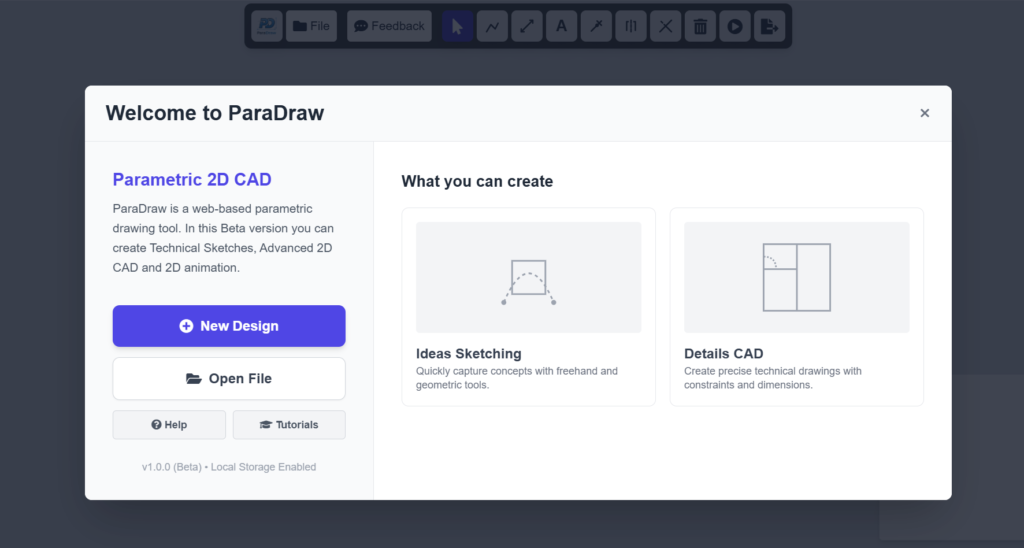
Once you are inside the Drawing page, a simple welcoming page appears in front of the drawing application. If you have already created a design and want to open it, click the “Open file” button to continue your project.
If you start a new design, you can click on “NEW DESIGN”.
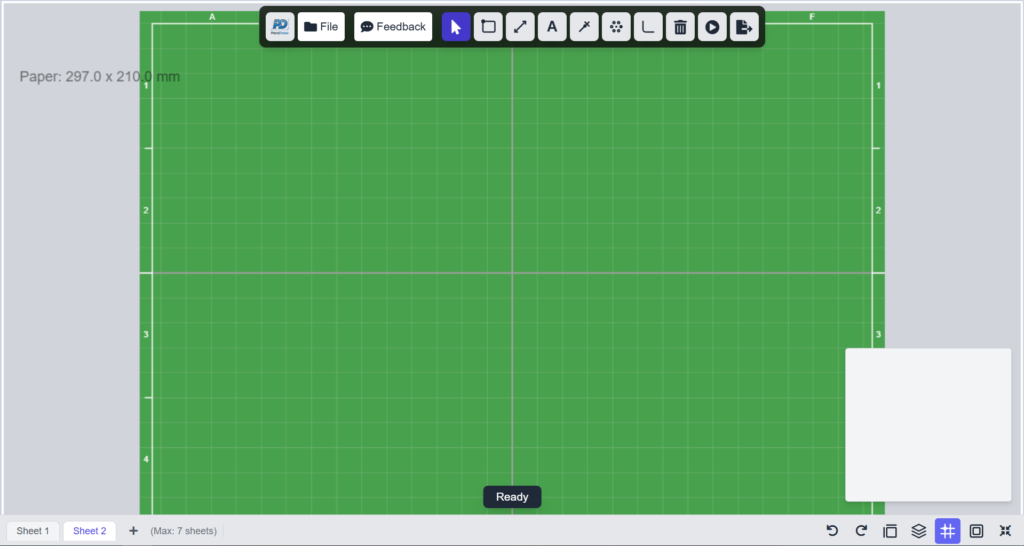
Once you click new design, the Paper option appears. The paper option allows you to choose the canvas you want to use with the unit you need, with the color paper option. I recommend that you keep the white paper for the moment. It is more convenient for the design. Once you decide on your canvas, you can click on “START DESIGN”.
You can explore the Application, explore all features, and design something with it.
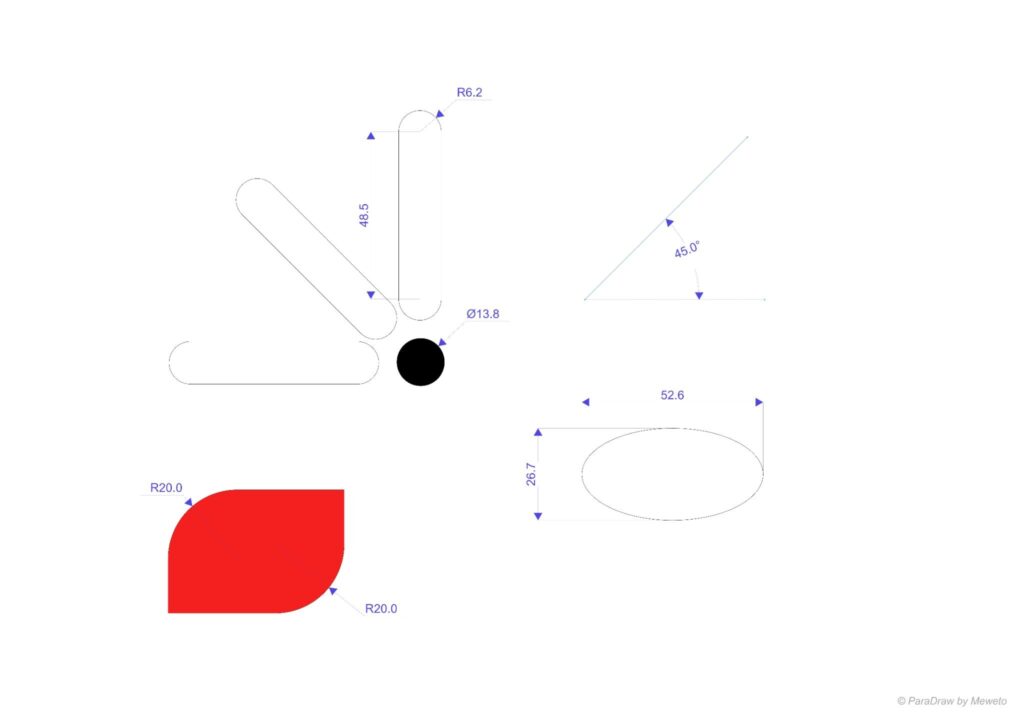
All in all, the application is more than an advanced sketch application and close to professional CAD software. In the next post, we will share some tutorials on how to use it. Besides, you can share the design you did with the application.
We hope that this application is useful for your project.
We would love to hear your thoughts or questions about this project—feel free to reach out to us anytime. Your feedback is always appreciated.